
I remember the first time I opened ChatGPT. I typed “hi” like I was talking to a stranger at a party, got a friendly response, and then just sat there wondering what I was actually supposed to do with it. If that’s where you are right now, this is for you.
Most beginner guides dump every feature on you at once. That’s not how you actually learn a tool. So instead, I’m laying this out as a 7 day plan, one thing to try each day, building on what you learned the day before. By the end of the week you’ll have a real feel for what ChatGPT is good at, where it falls apart, and how to use it without wasting half your messages on vague prompts.
Before Day 1: Free or Plus, and What You’re Actually Getting
You don’t need to pay anything to start. The free plan in 2026 is a lot more capable than it used to be. You get a slice of the flagship model, GPT-5.5 Instant, and once you burn through that daily allowance it quietly drops you down to the mini version for the rest of the window. You’ll notice the difference mostly in longer or more technical answers, not in casual chat.
Free accounts can currently send around 10 messages every 5 hours before getting bumped down, plus a very limited number of “Thinking” mode messages per day (the slower, more careful reasoning mode). Plus, at $20 a month, raises those caps significantly, unlocks the full Thinking model on demand, and adds extras like deep research and an agent mode. If you’re just starting out, stay on free for the first week. You genuinely don’t need Plus yet, and one of the goals of this week is figuring out whether you’d even use the extra headroom.
One more thing worth knowing before you dive in: on the free tier in some countries, including the US, OpenAI has started showing ads underneath responses. They’re labeled and kept away from sensitive topics, so it’s not the end of the world, just something to expect.
Day 1: Learn to Talk to It Like a Person, Not a Search Bar
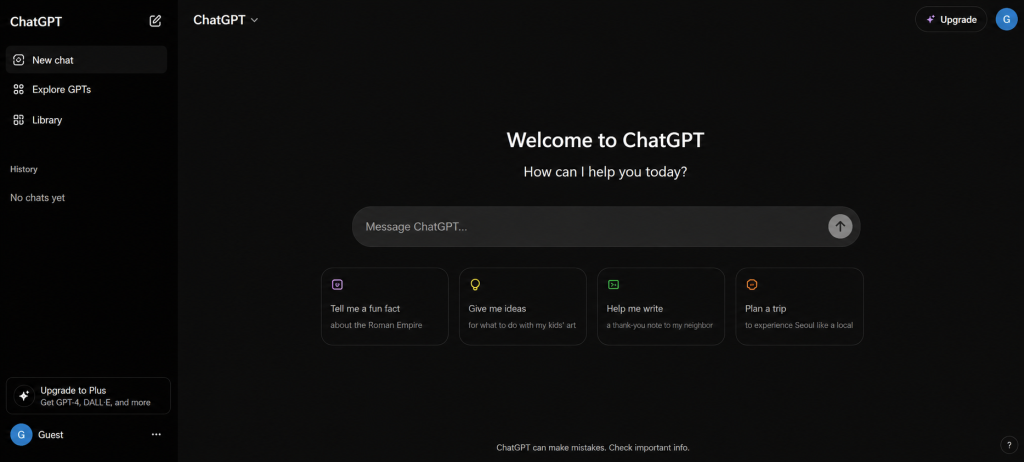
The single biggest mistake beginners make is typing search-engine style fragments. “best laptop 2026” gets you a generic listicle-style answer. “I’m a college student, budget is around ₱40,000, I mostly use it for typing papers and watching Netflix on the side, what should I actually buy” gets you something useful.
Today, just have a conversation. Ask it to explain something you’re curious about, then push back on the answer, ask a follow-up, disagree with part of it. Notice how it holds context across the whole thread. That’s the core skill of using ChatGPT well: treating it like an ongoing conversation with memory, not a one-shot lookup.
Try these to get a feel for it:
- Explain a concept you kind of understand but never fully got (compound interest, how vaccines work, whatever)
- Ask it to argue the opposite side of something you believe, just to see the counterpoints
- Have it roleplay as an expert in something you’re learning and quiz you
Day 2: Give It Context, Get Better Answers
By day two you’ve probably noticed that vague questions get vague answers. Today’s lesson is about front-loading context. Instead of “write me an email,” try “write a short, polite but firm email to my landlord about a leaking faucet that’s been unfixed for two weeks, I’ve already asked once verbally.”
The pattern that works is: who you are, what you need, and any constraints that matter (tone, length, audience, deadline). ChatGPT isn’t reading your mind, and it can’t see the situation you’re in unless you spell it out.
A trick I use constantly: if I’m not sure how to phrase a request, I just tell it that. “I need to ask my boss for a raise but I don’t know how to structure this, help me think it through” works better than trying to write the perfect prompt on the first try. Let it help you build the prompt.
Day 3: File Uploads and Multimodal Input
This is the day most beginners get genuinely surprised. You can drop in a PDF, a spreadsheet, a photo of a handwritten note, or a screenshot, and ChatGPT will read it and work with the content directly. Free accounts get a handful of uploads per day, which is plenty for testing this out.
Some things worth trying:
- Upload a bank statement or budget spreadsheet and ask it to summarize your spending patterns
- Take a photo of a whiteboard from a meeting and ask it to turn the notes into an organized list
- Drop in a job posting and your resume, and ask where the gaps are
I uploaded a messy contract once just to see if it would actually catch anything, and it flagged two clauses I’d genuinely skimmed past. That doesn’t mean skip a lawyer for anything that matters, but for a first-pass read it’s shockingly decent.
Day 4: Voice Mode, Because Typing Isn’t Always the Move
Both free and paid tiers now support voice input and output, though the more natural “advanced voice” experience with video is a Plus feature. On free, you tap the headphone or microphone icon, talk, and it responds out loud in a normal-sounding voice.
This one is underrated for two use cases: brainstorming while you’re doing something else with your hands, and language practice. If you’re learning English, Tagalog, or any other language ChatGPT supports, having a back and forth conversation out loud is a completely different kind of practice than reading text.
Try a 10 minute voice conversation today about something you’d normally type out. You’ll notice you phrase things more naturally when you’re talking instead of typing, which honestly makes for better prompts too.
Day 5: Memory, and Deciding What It Should Actually Remember
This is the feature that quietly changes how ChatGPT feels to use after a week or two. Once you mention something like “I’m a freelance graphic designer based in Manila,” it can carry that forward into future chats without you repeating yourself every time.
Here’s the part beginners skip: you’re in full control of this. Go into Settings, under Personalization, and you’ll see exactly what it has stored. You can edit individual memories, delete specific ones, or turn the whole feature off. I’d actually recommend checking this today rather than just letting it accumulate quietly in the background, especially if you’ve mentioned anything personal in passing.
Also worth knowing, separate from memory: your conversations may be used to help train future models unless you turn that off under Data Controls. It’s off by default for Business and Enterprise accounts, but on for free and Plus unless you flip the switch yourself. If you’re pasting anything sensitive, financial details, client information, medical stuff, turn that setting off first regardless of what plan you’re on.
Day 6: Image Generation, and Learning to Iterate
ChatGPT can generate images directly in the chat now, and honestly the quality gap between free and paid generations is smaller than you’d expect. The real skill here isn’t writing one perfect prompt, it’s iterating. Ask for an image, then say “make the lighting warmer” or “give it a more hand-drawn feel” and watch it adjust the same concept instead of starting over.
As someone who’s spent 15 years in Photoshop and Illustrator, I’ll be honest, I didn’t expect to use this much for actual client work. But for quick mood boards, rough concept sketches to show a client before committing hours to a real design, or just visualizing an idea I can’t quite describe in words, it’s become part of my process. It’s not replacing deliberate design work, but it’s a genuinely useful sketchpad.
Free accounts get a limited number of generations per day, which is enough to spend today experimenting without worrying about running out immediately.
Day 7: Custom Instructions and Making It Actually Yours
Last day, and this is the one that ties the whole week together. Under your profile, there’s a “Customize ChatGPT” option where you can set standing instructions that apply to every future chat automatically. This is different from memory, memory is facts it picks up along the way, custom instructions are things you deliberately tell it upfront about how you want it to behave.
Some examples worth setting today:
- Your profession and what you mainly use it for, so it stops giving you generic answers
- Tone preferences (“skip the corporate enthusiasm, just talk to me straight”)
- Formatting habits, like preferring short paragraphs over bullet-heavy answers, or the reverse
This is technically a Plus and Team feature for the deeper customization options, though free users get a lighter version of it too. Either way, spend ten minutes today setting this up properly. It’s the difference between ChatGPT feeling like a generic tool and feeling like something tuned to how you actually work.
Where That Leaves You
Seven days in, you should have a decent sense of whether the free tier covers what you need or whether the message caps are actually getting in your way during real use. That’s really the only question worth answering before you consider paying for anything.
I’ve watched a lot of people either ignore ChatGPT entirely because their first attempt was underwhelming, or throw money at Plus immediately without ever exploring what the free tier could already do. Neither approach gets you anywhere useful. Give it a real week, pay attention to which features you actually reach for versus which ones sounded cool but you never touched again, and let that decide your next step instead of the marketing page.
Pingback: Gemini vs ChatGPT: A Real-World Comparison - DigiQuest